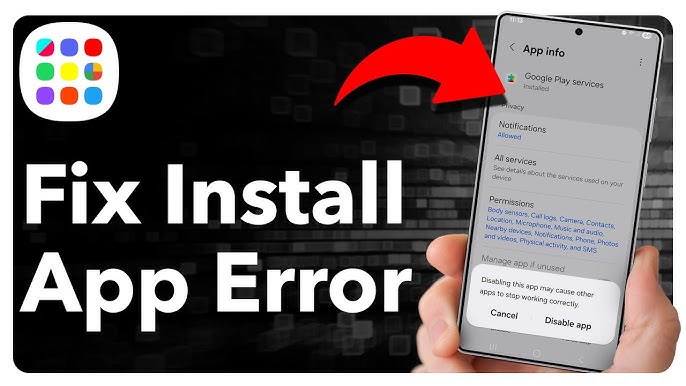
Have you ever tried installing a new app, only to see an error message pop up? I’ve been there—excited to try a new game or productivity tool, and suddenly the download fails. It’s frustrating, especially when you don’t know why it’s happening.
The good news: most app installation errors are fixable, and they usually don’t require advanced technical skills. In this guide, I’ll walk you through common reasons apps fail to install and simple solutions that actually work.
Common Reasons for App Installation Errors
Understanding why an app fails to install is the first step to fixing it.
1. Insufficient Storage
Apps need space not just for themselves but also for temporary files during installation.
Symptoms:
-
“Not enough storage” message
-
App partially downloads but doesn’t open
Solution:
-
Delete unused apps or large files
-
Clear cache from your phone
-
Move photos and videos to cloud storage
2. Network Issues
A weak or unstable connection can interrupt app downloads.
Symptoms:
-
Download gets stuck at a certain percentage
-
Errors mentioning network failure
Solution:
-
Switch from mobile data to Wi-Fi (or vice versa)
-
Restart your router or device
-
Pause and resume the download
3. Outdated Operating System
Some apps require the latest OS version.
Symptoms:
-
“App not compatible with this device”
-
Installation fails after download
Solution:
-
Check for system updates in settings
-
Update your device OS
-
Retry installation after update
4. App Store or Market Issues
Sometimes the problem is with the app store itself (Google Play, App Store, etc.).
Symptoms:
-
Errors like “Cannot download at this time”
-
Unable to connect to the store
Solution:
-
Clear the app store cache (Android)
-
Sign out and sign back into your account
-
Restart the device
5. Corrupted Cache or Temporary Files
Old or corrupted data can block new installations.
Symptoms:
-
App installs partially and then fails
-
Random error codes
Solution:
-
Clear cache and temporary files
-
Restart your device
-
Try reinstalling the app
6. Security or Permissions Issues
Devices may block apps from unknown sources.
Symptoms:
-
“Installation blocked” or “Unknown source” warning
-
App doesn’t install from third-party sources
Solution:
-
Enable installations from trusted sources in settings
-
Avoid downloading apps from unverified websites
-
Only use official app stores when possible
7. Conflicting Apps or Software
Sometimes existing apps or antivirus programs interfere.
Symptoms:
-
Installation fails repeatedly
-
Specific error codes appear
Solution:
-
Disable antivirus temporarily (if safe)
-
Uninstall apps that might conflict
-
Retry installation
Step-by-Step Fix for Most App Installation Errors
Here’s a practical approach I use whenever an app fails:
-
Check storage space – free up at least 200–300 MB
-
Restart your device – simple but effective
-
Check your network – switch connection if needed
-
Clear cache/data – for the app store and temporary files
-
Update OS and app store – ensures compatibility
-
Retry installation – usually works after these steps
Tip: Always download apps from official stores for safety.
Real-Life Example: How I Fixed a Stubborn App
I once tried installing a productivity app on my phone, and it kept failing with a network error, even though my Wi-Fi was strong.
Here’s what worked:
-
I cleared the Google Play cache
-
Restarted the phone
-
Updated the Play Store app
After that, the installation completed successfully in under a minute. The lesson? Most errors have a simple, step-by-step fix.
Practical Tips to Avoid Future Errors
-
Keep your device updated – OS and app store updates fix many bugs
-
Monitor storage – aim to have at least 1 GB free for smooth installations
-
Use stable internet – Wi-Fi is generally more reliable than mobile data
-
Avoid third-party apps – stick to verified sources
-
Restart your device regularly – clears temporary files and caches
FAQs: App Installation Problems
1. Why does my app keep failing to install?
It’s usually storage, network issues, outdated OS, or app store problems.
2. Can I install apps without Wi-Fi?
Yes, but mobile data must be stable and have sufficient speed.
3. How do I clear app store cache?
On Android: Settings → Apps → Google Play Store → Storage → Clear Cache.
On iOS, you may need to log out and log back in.
4. Why is an app “not compatible” with my device?
Your device OS may be outdated, or the app requires newer hardware features.
5. Can antivirus apps block installations?
Yes, temporarily disabling them (if safe) can solve conflicts.
Conclusion: Don’t Let App Errors Frustrate You
App installation errors are common, but most are easy to fix with a few practical steps. By checking storage, network, system updates, and cache, you can usually solve the problem quickly.
The key is to stay calm, follow a structured troubleshooting approach, and stick to official app stores for downloads. With these tips, app installation won’t feel like a headache anymore.