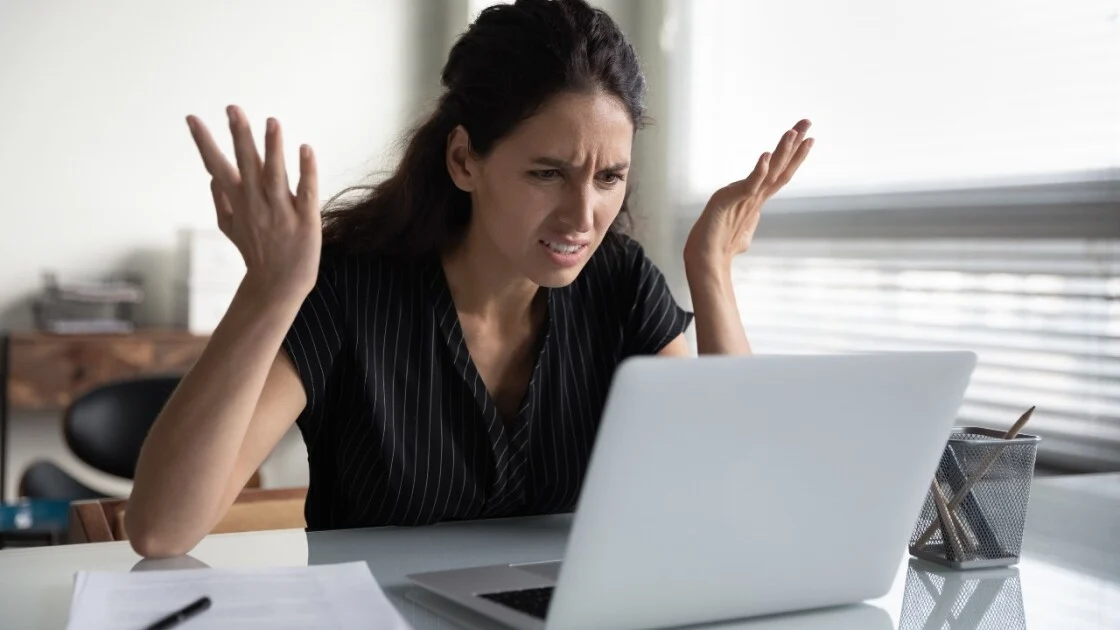
Few things are more frustrating than pressing the power button on your PC and… nothing happens. Or maybe it turns on, but Windows won’t load, or you’re stuck on a black screen. I’ve faced this exact scenario myself—panic sets in, thinking, “Did I break my computer?”
The truth is, most PC startup problems are solvable with some step-by-step troubleshooting. You don’t need to be a tech expert—just a systematic approach. In this guide, I’ll walk you through common causes, practical fixes, and tips to prevent future issues.
Common Causes of PC Startup Issues
Understanding the reason behind a PC failing to start is the first step in fixing it.
1. Power Supply Problems
Symptoms:
-
PC doesn’t turn on at all
-
No lights, no fan movement
Solution:
-
Ensure the power cable is securely connected
-
Test the outlet with another device
-
Check if the power supply unit (PSU) is functioning
-
Try a different power cable if possible
2. Hardware Malfunctions
Faulty RAM, hard drives, or graphics cards can prevent startup.
Symptoms:
-
Beeping sounds during startup
-
PC powers on but fails to load OS
-
Blue screen or black screen
Solution:
-
Reseat RAM sticks and graphics card
-
Disconnect external devices to isolate the problem
-
Run hardware diagnostics if available
3. Corrupted Operating System
Sometimes Windows or other OS files get corrupted.
Symptoms:
-
Windows loading screen freezes
-
“Operating system not found” error
-
Frequent crashes during boot
Solution:
-
Boot into Safe Mode (press F8 or Shift + F8 during startup)
-
Use System Restore to revert to a working state
-
Repair installation with a bootable USB drive
4. Software Conflicts or Updates
A recent software update or driver installation may interfere with startup.
Symptoms:
-
PC freezes after Windows logo
-
Blue screen errors with error codes
Solution:
-
Boot into Safe Mode and uninstall recent updates or drivers
-
Use Windows Recovery options to troubleshoot
5. Overheating or Dust
Heat and dust buildup can prevent proper startup.
Symptoms:
-
Fans run loudly, then PC shuts off
-
PC turns on briefly, then powers off
Solution:
-
Clean dust from fans and vents
-
Ensure proper ventilation
-
Check CPU and GPU temperatures
6. Battery or CMOS Issues (for Laptops and Desktops)
A dead CMOS battery can reset BIOS settings and affect startup.
Symptoms:
-
Incorrect date/time on startup
-
BIOS settings reset
-
PC fails to boot properly
Solution:
-
Replace CMOS battery (usually a coin-cell battery on motherboard)
-
Reset BIOS to default settings
Step-by-Step PC Startup Fix
Here’s a practical approach I use when my PC refuses to boot:
-
Check power supply and cables – make sure the PC receives power
-
Disconnect external devices – USB drives or peripherals can block startup
-
Listen for beeps or error codes – check motherboard manual for meaning
-
Boot into Safe Mode – troubleshoot software or driver conflicts
-
Run System Restore or Startup Repair – fixes OS-related issues
-
Check hardware components – reseat RAM, check hard drives, test PSU
-
Update BIOS/UEFI if needed – only if other steps fail
Tip: Take notes on any error messages—they’re clues to the problem.
Practical Tips to Prevent Startup Issues
-
Keep your system updated with latest OS patches and drivers
-
Run regular antivirus scans to avoid malware
-
Clean dust from inside your PC every few months
-
Avoid sudden power shutdowns—use a UPS or surge protector
-
Backup important data regularly in case of OS failure
Real-Life Example: Fixing a Frozen Startup
Once, my PC froze at the Windows logo. Here’s what I did:
-
Booted into Safe Mode using F8
-
Uninstalled a recently updated graphics driver
-
Restarted normally
Result? Windows booted perfectly, and the startup issue was resolved.
Lesson: Most startup problems are either hardware issues, OS corruption, or recent software changes.
FAQs: PC Startup Issues
1. Why won’t my PC turn on at all?
Check power supply, cables, and PSU. Try another outlet or cable.
2. How do I boot into Safe Mode?
Press F8 (or Shift + F8 on Windows 10) during startup and select Safe Mode.
3. Can a virus prevent my PC from starting?
Yes, malware can corrupt startup files. Use Safe Mode or recovery tools to scan and repair.
4. My PC beeps but doesn’t start. What does it mean?
Beep codes indicate hardware issues. Check your motherboard manual for the specific pattern.
5. How can I prevent startup issues?
Keep drivers and OS updated, clean your PC, avoid sudden shutdowns, and backup data regularly.
Conclusion: Take Control of Your PC Startup
Startup problems are common but usually solvable with patience and a systematic approach. Start by checking power and hardware, then move to software fixes like Safe Mode or Startup Repair.
With these steps, you can troubleshoot your PC, prevent future issues, and avoid unnecessary panic when your computer won’t start.