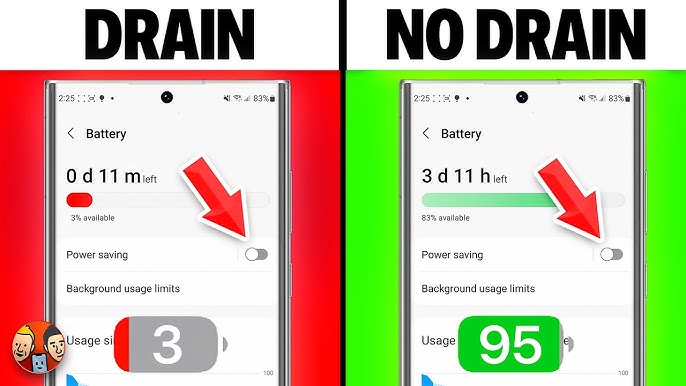
I remember the frustration of seeing my phone drop from 80% to 30% within a few hours—even without heavy use. For many of us, battery drain is one of the most annoying tech problems, especially when we rely on our devices all day.
The good news? Most battery drain issues can be fixed with simple adjustments, practical habits, and a few clever tricks. After testing these myself, I’ve seen my devices last much longer without constantly reaching for the charger.
This guide will cover why batteries drain quickly, how to fix it, and tips to extend battery life.
Common Reasons for Battery Drain
Understanding why your device loses power quickly helps you solve it faster.
1. Apps Running in the Background
Some apps continue using battery even when not open.
Symptoms:
-
Battery drops steadily even when the device is idle
-
Device feels warm
Solution:
-
Close unused apps
-
Disable background app refresh (iOS) or background activity (Android)
-
Check battery usage in settings to identify power-hungry apps
2. Screen Brightness and Display Settings
The display often consumes the most battery.
Symptoms:
-
Fast battery drain when using the screen
-
Bright screen needed for readability
Solution:
-
Reduce screen brightness or use auto-brightness
-
Shorten screen timeout (30–60 seconds)
-
Use dark mode where available
3. Location and GPS Services
GPS constantly tracking your location eats battery quickly.
Symptoms:
-
Battery drops significantly during navigation or location-heavy apps
Solution:
-
Turn off GPS when not needed
-
Use location services only for apps that require it
-
Set apps to “While Using” rather than “Always On”
4. Poor Network or Weak Signals
Searching for a network or Wi-Fi consumes extra power.
Symptoms:
-
Battery drains faster in low-signal areas
-
Device heats up slightly when signal fluctuates
Solution:
-
Enable airplane mode in low-signal areas
-
Use Wi-Fi over mobile data when possible
-
Avoid switching frequently between Wi-Fi and mobile networks
5. Push Notifications and Syncing
Frequent notifications and auto-syncing can use battery in the background.
Symptoms:
-
Battery drops without heavy usage
-
Constant vibration or screen wake-up
Solution:
-
Turn off notifications for non-essential apps
-
Set email or social apps to manual sync
-
Disable automatic updates unless necessary
6. Old Battery or Software Issues
Batteries degrade over time, and software bugs can drain power.
Symptoms:
-
Rapid drain even with minimal use
-
Device shuts down unexpectedly
Solution:
-
Update your device software regularly
-
Replace battery if it’s old or swelling
-
Restart your device periodically
Step-by-Step Battery Drain Fix
Here’s a practical approach I use to extend battery life:
-
Check battery usage: Identify apps consuming the most power.
-
Adjust display: Lower brightness, shorten screen timeout, enable dark mode.
-
Disable background activity: Limit background apps and auto-sync.
-
Control location services: Turn off GPS when not needed.
-
Use power-saving mode: Most devices have built-in battery saver features.
-
Update software: Keeps apps and OS optimized.
-
Restart or reboot: Refreshes processes and fixes temporary glitches.
Tip: Small daily habits add up—like turning off Wi-Fi or Bluetooth when not needed.
Practical Tips to Extend Battery Life
-
Charge between 20%–80% for long-term battery health
-
Avoid using the device while charging
-
Keep the device cool—high temperatures damage battery
-
Remove battery-draining widgets or live wallpapers
-
Use original chargers and cables for consistent charging
Common Mistakes That Cause Fast Battery Drain
-
Leaving apps open unnecessarily
-
Ignoring system updates
-
Overusing location or Bluetooth
-
Charging overnight frequently (for some devices)
-
Using power-hungry apps without monitoring
Real-Life Example: How I Fixed My Phone’s Battery
My phone used to drop from 100% to 50% by lunchtime. After checking battery usage, I discovered a social media app was constantly running in the background.
Here’s what I did:
-
Disabled background activity for that app
-
Reduced brightness and enabled dark mode
-
Turned off location services when not needed
Result? Battery now lasts the whole day with moderate use—a huge improvement.
FAQs: Battery Drain Solutions
1. Why does my battery drain so fast even with little use?
Check for background apps, location services, or software issues.
2. How can I extend battery life long-term?
Use moderate charging habits, avoid high heat, update software, and manage app usage.
3. Does turning off Wi-Fi or Bluetooth save battery?
Yes, especially if you’re not using them. Constant searching for networks consumes power.
4. Should I enable power-saving mode all the time?
You can, but it may limit performance and notifications. Use when battery is low or to extend life during the day.
5. How do I know if my battery needs replacement?
If it drains unusually fast, shuts down unexpectedly, or swells, it may need replacement.
Conclusion: Take Control of Your Battery
Battery drain doesn’t have to ruin your day. With a few simple tweaks, smart habits, and regular maintenance, you can significantly extend your device’s life between charges.
Start by checking which apps or settings are using the most power, adjust your display and location settings, and adopt daily habits like turning off unused features.
With these solutions, you’ll spend less time charging and more time using your device efficiently.